

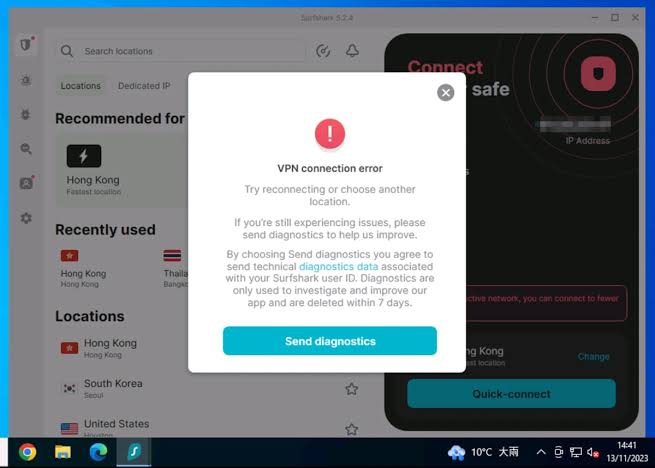
Even a well-configured VPN occasionally runs into problems. Dropped connections, slow speeds, and blocked access are frustrating—especially when you’re relying on a stable Hong Kong IP address for time-sensitive work. Fortunately, most common issues have straightforward solutions. This guide addresses the problems users encounter most frequently when using a vpn with hong kong ip address and explains exactly how to fix them.
Problem 1: The VPN Connection Keeps Dropping
Why it happens: Unstable VPN connections are usually caused by network congestion, server-side issues, or a conflict between your VPN protocol and your local network settings.
How to fix it:
Switch to a different Hong Kong server within your VPN application. High-traffic servers are more prone to instability.
Change your VPN protocol. WireGuard is generally the most stable modern option. If WireGuard is already selected, try OpenVPN UDP or TCP.
Check your local internet connection. Run a speed test without the VPN active. If your base connection is unstable, the VPN will compound the problem.
Disable and re-enable your network adapter, then reconnect to the VPN.
If using Wi-Fi, switch to a wired Ethernet connection—this alone resolves intermittent drops in many cases.
Problem 2: Your Hong Kong IP Address Is Being Detected or Blocked
Why it happens: Streaming services, banking platforms, and some websites use IP blacklists and VPN detection systems to identify and block VPN traffic. Shared IP addresses used by large numbers of users are particularly vulnerable to being flagged.
How to fix it:
Switch to a different Hong Kong server. Your provider likely offers multiple server options within the region—rotating between them often resolves blocks.
Clear your browser’s cache and cookies before retesting access. Cached geolocation data can persist even after your IP changes.
Enable obfuscation mode if your VPN supports it. This disguises VPN traffic as standard HTTPS traffic, making it harder for detection systems to identify.
Consider upgrading to a dedicated IP address. A private Hong Kong IP used exclusively by you is far less likely to appear on blacklists than a shared address.
Problem 3: Slow Speeds When Connected to a Hong Kong Server
Why it happens: The physical distance between your location and Hong Kong introduces inherent latency. Additional slowdowns occur when Hong Kong servers are overloaded or when your chosen protocol creates unnecessary overhead.
How to fix it:
Switch protocols. WireGuard consistently delivers faster speeds than OpenVPN due to its lighter codebase.
Try a different Hong Kong server. Providers with multiple servers in Hong Kong allow you to avoid congested nodes.
Disable unnecessary background applications that consume bandwidth while you are connected.
If your provider offers split tunneling, activate it and route only the relevant application through the VPN. This reduces the load on the encrypted connection.
For video calls specifically, connect to the server before launching the video conferencing application to establish a stable baseline connection.
Problem 4: DNS Leaks Revealing Your Real Location
Why it happens: DNS requests sometimes bypass the VPN tunnel and are handled by your ISP’s servers instead—revealing your real location even when your IP address shows Hong Kong.
How to fix it:
Run a DNS leak test using a reliable online tool immediately after connecting to your Hong Kong server.
Enable DNS leak protection in your VPN application settings—most reputable providers include this as a standard feature.
Manually configure your device to use a privacy-focused DNS provider such as Cloudflare (1.1.1.1) or Google (8.8.8.8) and verify that these settings persist when the VPN is active.
Problem 5: The VPN App Won’t Connect at All
Why it happens: Firewalls, antivirus software, and operating system updates occasionally block VPN connections. Outdated VPN apps are also a frequent cause of connection failures.
How to fix it:
Update your VPN application to the latest version. Providers regularly push updates to address compatibility issues.
Temporarily disable your firewall or antivirus software to determine whether it is blocking the connection. If this resolves the issue, add a firewall exception for the VPN application.
Restart your router and device, then attempt to reconnect.
Reinstall the VPN application if the issue persists after trying the above steps.
Quick Reference Checklist for Hong Kong VPN Issues
Before contacting your provider’s support team, run through this checklist:
Tested a different Hong Kong server
Changed VPN protocol
Cleared browser cache and cookies
Verified base internet connection speed without VPN
Checked for DNS leaks
Confirmed VPN app is up to date
Disabled conflicting firewall or antivirus rules
Working through this list resolves the vast majority of common issues without requiring any outside assistance.